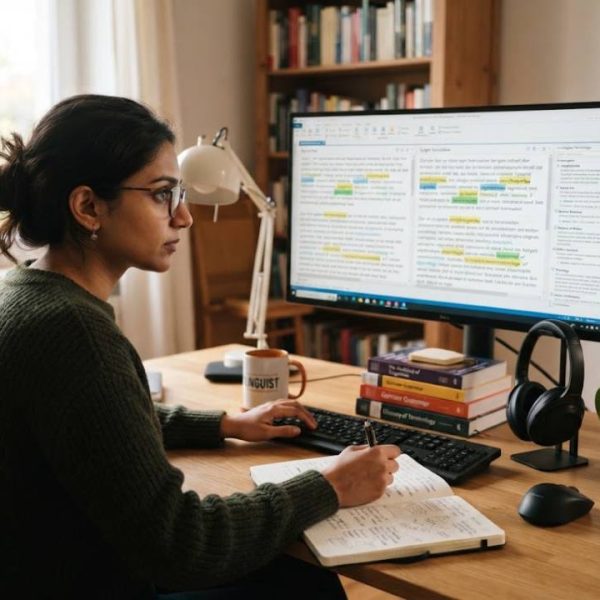
Inside a CAT Editor With Segments, Matches and Glossaries
- May 10, 2026· Articolo di Maria Jones
- cat editor , cat tool
The editor is where translators spend most of their day, so its design shapes quality and speed. A good CAT editor looks simple at first glance, yet it hides a lot of help in the right places. Here is a guided tour of what you will see inside one.
The two column layout
Most editors show the source text on the left and the target field on the right. Each row is one segment, usually a sentence.
The layout keeps the original in view while you write. It makes comparing and checking natural.
Segment status
Each segment carries a status, such as not started, draft, translated or approved. Colors or icons make progress visible at a glance.
Reviewers can filter by status and jump straight to the rows that need attention.
The match panel
When you open a segment, the editor shows suggestions from the translation memory. Each suggestion has a percentage that tells you how close it is.
Differences are highlighted, so you edit only what changed.
Those percentages are not only a working aid; they also shape what a client pays. Providers of technical translation services usually price exact matches and repetitions lower than new text, so the analysis behind a quote comes straight from panels like this one. A clear invoice then lists the word counts in each match band, which lets buyers check the figures against their own editor. Understanding that link between matches and money makes quotes easier to compare.
Glossary hits
Approved terms are highlighted in the source and offered in the target. One click inserts the correct term.
This helps teams stay consistent, especially when many translators share a project.
Tags and placeholders
Documents contain formatting tags and variables. The editor displays them as small markers that you move but do not change.
A tag checker warns you when a marker is missing or misplaced.
Keyboard shortcuts
Experienced translators rarely touch the mouse. Shortcuts confirm segments, insert matches, jump to the next row and open the glossary.
A tool that lets you customize shortcuts can add real speed over a long day.
Comments and queries
When the source is unclear, you can leave a comment on the segment. Project managers or authors reply inside the same screen.
This replaces long email chains and keeps answers tied to the text.
Review mode
Reviewers see the translator's version and can edit it, with changes tracked. They can also accept or reject edits and add notes.
Tracked changes help translators learn from corrections.
Quality checks
Built in checks look for number mismatches, double spaces, missing translations and term errors. Results appear in a list you can click through.
They catch simple slips early, before a human reviewer spends time on them.
Machine translation inside the editor
Some editors can suggest a machine draft when no memory match exists. You edit the draft, and your final version feeds the memory.
Treat drafts as help, not truth, and always read the source.
Preview
A preview pane shows the translated file with its formatting. It helps check length, line breaks and the overall look before delivery.
Previews are especially useful for web pages, slides and app screens.
Filters and search
Search finds a word across the whole project, and filters narrow down segments by status, match range or comment.
Find and replace helps apply a late terminology change across a file.
Web based or desktop
Browser based editors need no installation and update automatically. Desktop editors work offline but need manual updates and file transfers.
For distributed teams, a web editor avoids many compatibility issues.
Formats and layout
A strong editor opens Word files, spreadsheets, slide decks, subtitles and code files. Its page on cat editor shows examples of supported file types.
The better the format support, the less copying and pasting your team does.
Language support
Right to left scripts, complex scripts and special characters need proper handling. Test a sample in each language before you commit.
Standards such as Unicode CLDR define how many languages format dates, numbers and names.
Accessibility and comfort
Clear fonts, adjustable text size and dark mode reduce eye strain. Translators work long hours, so small comforts add up.
Look at the screen yourself during a trial, not only at the feature list.
Working with a glossary
Terms are only useful if translators can find and apply them quickly. An explanation of how a translation cat tool fits into the workflow shows how glossary and editor work together.
Keep the glossary short, clear and owned by one person.
Collaboration in real time
Several people can work on the same file, each on different segments. Locks prevent two people from editing the same row.
Progress updates for everybody without extra messages.
Performance on large files
Big projects can slow weak tools. Test with a long file to see how fast it opens, saves and searches.
A responsive editor saves minutes that add up to hours.
Training new users
New translators learn faster with a short guide and a practice file. Show them the match panel, glossary and quality checks first.
A one page cheat sheet of shortcuts is an easy win.
Security
Check how the editor protects confidential files, handles logins and records activity. Role based access limits who can see what.
For sensitive content, ask about encryption and data location.
Choosing an editor
Test two or three tools with a real file and a real translator. Ask them what slows them down and what they miss.
Their feedback is more useful than any comparison table.
Tools only go so far on their own, and the final quality still depends on the people using them. When a project is urgent or the subject matter is unfamiliar, working with translation services can give a team expert support alongside its editor. That combination keeps terminology consistent while deadlines stay under control. It also means a second pair of eyes reviews the text before it reaches readers.